Operation & HUD Guide
How to Connect Your Lovense Device
- Sit on the AvaLove-enabled furniture.
-
If you sit for the first time, you are asked which gender you would like to connect as.
Select either "Yes! (female)", "Yes! (male)", or "No, thanks"
if you don't want to use Lovense.
Note: your selection is saved so that you don't have to answer every time you sit, but you can change your selection by touching the furniture and click "Lovense" in the menu. - If you chose to connect and don't have a Lovense connection established yet (or your Lovense session expired), you're asked to open a web page that displays a QR code.
-
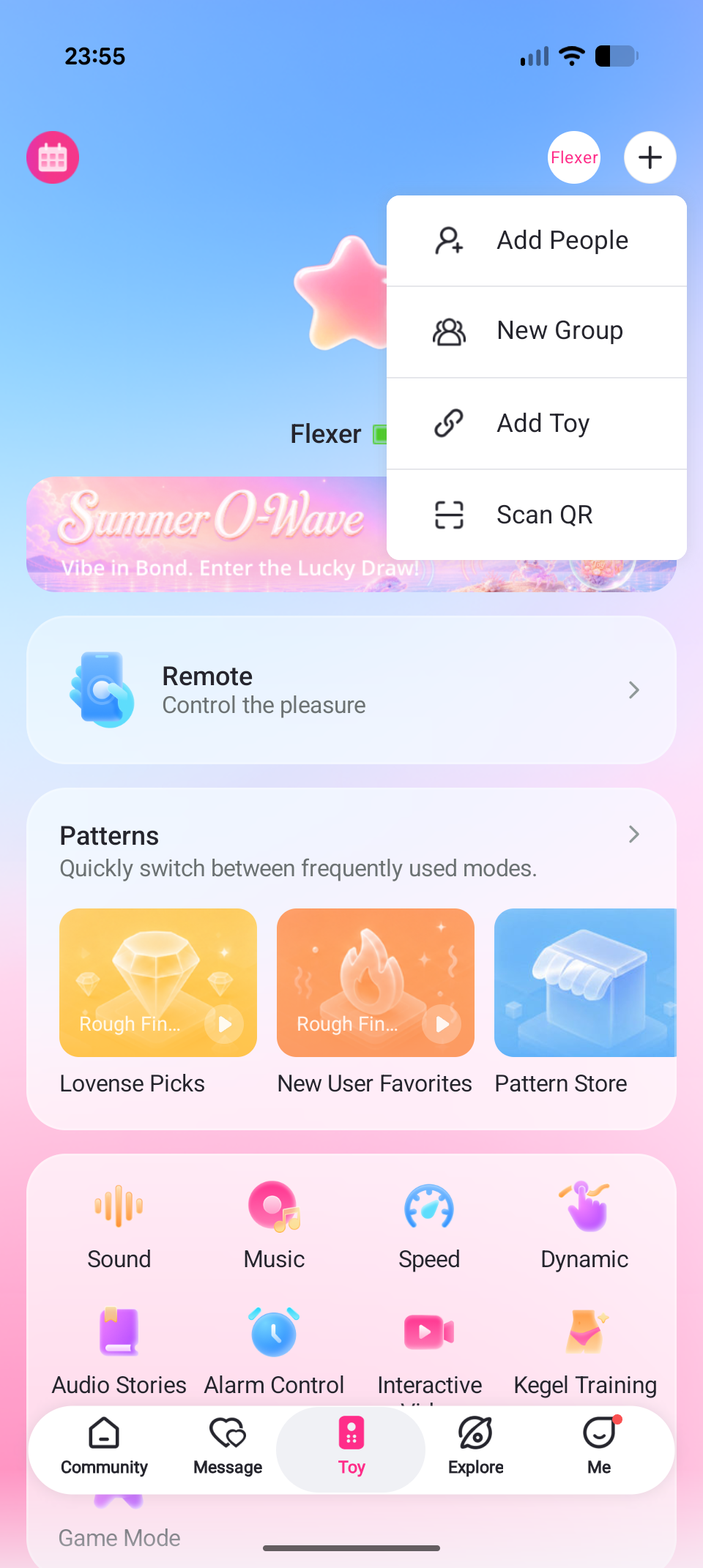
Open the Lovense app on your phone, tap the + button in the top right corner, select
Scan QR, and scan the QR code shown in your browser.
Upon successful connection, your Lovense toy will activate. - As you switch poses on your furniture, your Lovense toy changes the pattern (if defined by the creator; you can make adjustments using the AvaLove HUD, see below).
- When you stand up, the Lovense toy deactivates.
Using the HUD
Using the AvaLove HUD, you can change Lovense patterns associated with poses and create your own Lovense patterns.
Changing the Pattern Association
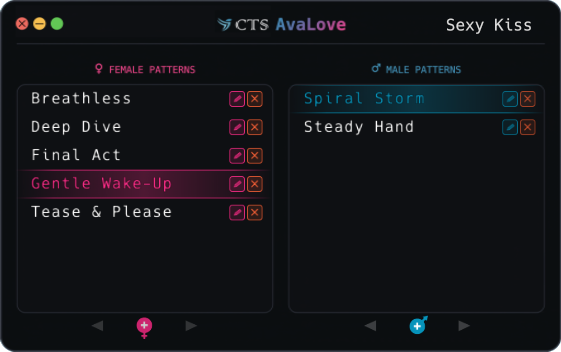
The HUD shows the name of the current pose/animation in the top right corner.
In the center you see the available Lovense pattern names, separated into female and male patterns. The currently active pattern is highlighted. Click a different pattern name to change the association of the pattern with the current pose. The change is saved automatically.
Editing and Creating Patterns
- Click the pencil icon right of a pattern name to edit the respective pattern.
- Click the trash can icon to delete a pattern.
- Click the pink or blue + button below the pattern list to create a new pattern.
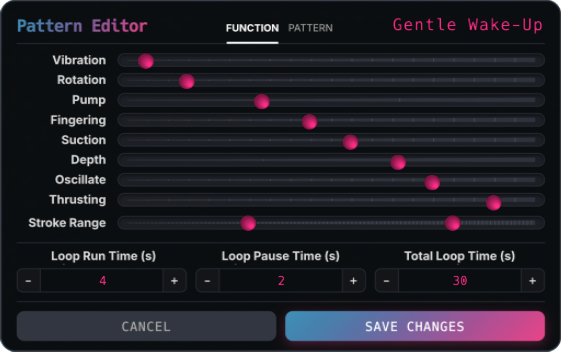
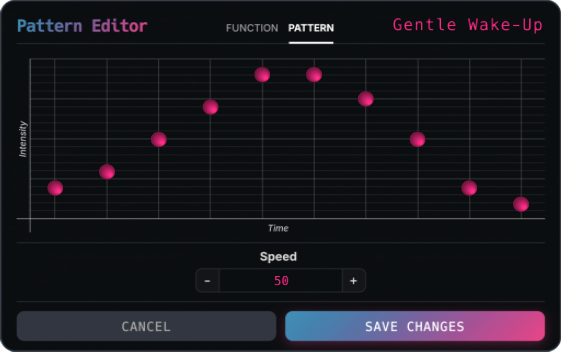
When in edit mode, choose the mode of your pattern.
In Function mode, you define a static pattern for which you can adjust the intensity of each of the toy's functions (vibration, rotation, fingering, etc.). Set the times for how long the functions will run, for how long they will pause, and the total running time. Note that your device typically only has a subset of the functions (depending on the model).
In Pattern mode, you define intensities that vary over time and the speed at which the intensities change.
General Usage
-
You can reposition the HUD on your screen by dragging the HUD slowly by its caption at the top center.
Make sure you don't drag too quickly. - Click the yellow button in the upper left corner to minimize the HUD.
- Click the red button in the upper left corner to detach the HUD.